Contents List
There’s nothing more frustrating than finding and removing duplicate songs from your iTunes Library. If you are familiar with that pain, then don’t worry, we are here to help you. In this post, I am gonna show you a foolproof guide which will help you to delete duplicate songs from your iTunes library. Actually, I call it the iTunes Remove Duplicates process which has already helped me to clean my iTunes library.
How to Remove Duplicates in iTunes
Fortunately, you can also learn the exact process and then implement it to delete duplicate files from your iTunes. So, without having more discussions, let’s dive into it:
Also Read:- How to Fix iTunes Won’t Recognize iPhone Error
How to Delete Duplicates in iTunes?
With the new version of iTunes, it is quite hard to find the duplicate files in your iTunes library. Previously, you can found it under the view tab, but now it’s not there. Following are the steps which you can use to find and delete files from your iTunes library:
- Open the iTunes app on your device.
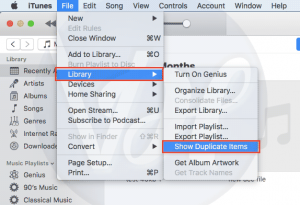
- Then head over to File > Library > Show Duplicate items.
- Now, click on All and then it will start displaying the duplicate tracks in your iTunes.
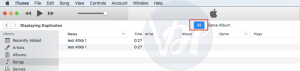
- You can also see duplicate files from a single album by clicking on the “Same Album” tab.
- You can also arrange them according to Artists, Albums, Names etc. Make sure that the Album and Artist have the next tick to them.
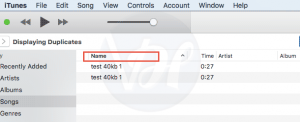
- Click on the Name column and then it will show you the exact list of duplicate files.
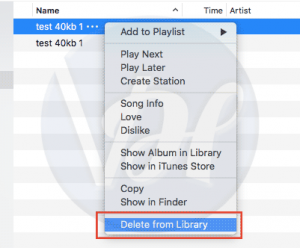
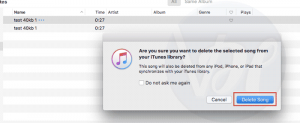
- Just right-click on the file which you want to delete and then select delete from library.
- Then select delete song/any other file
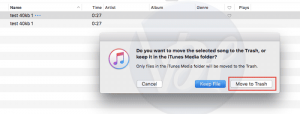
- Now if you want to move the file in the trash then click on move to trash. or if you want to keep the file in your disk then select keep file.
Also Read:- How to Add Music to iPhone Without iTunes?
2. How to Prevent iTunes from Importing Duplicated Files?
If you are importing files from somewhere else, then you have to make sure that the iTunes isn’t adding up the duplicate files to your music library. Here’s how you can do that:
- Open iTunes and then click on Preferences.
- Click Advanced.
- Now, just make sure that the Keep iTunes media folder organized box has a tick on it.
- At the same time, you also have to see whether the Copy Files to iTunes Media Folder options is enabled or disabled.
- Press the Reset All Warnings button.
- Click OK and it’s done.
Now, the iTunes will always keep your folder organized and you will never face any kind of issue again.
Also Read:- Best iTunes Alternatives
Conclusion
That’s it! These are the steps which you need to follow to stop iTunes from storing duplicate files into their media library. I hope this guide will help you fix the issue. If you found this guide helpful, then share it with your friends, family, and relatives who are looking for the same. Also, if you have any queries or questions to ask, then let me know in the comment section below.