Contents List
At some point of time, we all linked our Facebook accounts to our Instagram accounts thus making it easier for our Facebook friends to locate us and follow on Instagram. Also, it allows us to share our Instagram posts on our Facebook accounts without much efforts. We find it very easy linking our Facebook account to our Instagram account but the real trouble begins when we need to operate both the accounts separately and are supposed to Disconnect Instagram From Facebook.
How to Disconnect Instagram From Facebook Account
Although, there is a simple way to disconnect Instagram account from Facebook account. But we still find it complicated as we have never been through the process before. So, to all those people trying to figure out “How to unlink Facebook account from Instagram account ?”, here are a few steps that will get the task done for you conveniently:
How to Unlink Instagram and Facebook Accounts
- Please open your Instagram account on your device. You can access your Instagram account either through the website or the application which you might have downloaded before.
- Please go to Options followed by tapping Linked Accounts under Settings.
- Then you may go ahead and select Facebook option as here we are trying to disconnect the Instagram account from our Facebook account.
- You may proceed by tapping on Unlink Account.
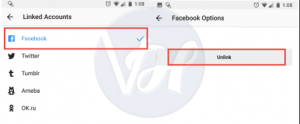
So, that would be all for the Android users who were trying to unlink their Facebook account from Instagram account. But this task for iOS users consists of one more step to be performed.
- There appears a prompt on the screen of iOS users asking them if they are sure about unlinking their Facebook account from their Instagram account. The iOS users are supposed to tap on Yes, I am sure.
For the iOS users, you have successfully performed the task of disconnecting your Instagram account from your Facebook account.
Also Read:- How to Delete Instagram Account Permanently
In case, you were trying to disconnect your Business Instagram account from your Facebook account. We would like to inform you that in that scenario you will have to switch back to the personal account. Unlink the Facebook account and then switch back to the Business account again.
You can switch back from a Business Instagram account to a personal account by going to Options and there you find the option “Switch back to Personal account”. After switching back to personal account successfully, you may go ahead and try to disconnect your Instagram account from your Facebook account by performing the steps mentioned above.
Just to remind you, your Instagram posts will be no more showing up on your Facebook account neither your Facebook friends will be prompted to follow you on Instagram. As disconnecting your Instagram account from your Facebook account blocks the feature of sharing your Instagram posts on Facebook. And also doesn’t let your Facebook friends know that you possess an account on Instagram.
Also Read:- How to DM on Instagram On PC (Instagram Direct Message)
How to Remove Instagram Posts From Facebook
After disconnecting your Instagram account from your Facebook account, you might even think of removing your existing Instagram posts from your Facebook profile. So these are some quick steps that will help you to get through it:
- Please open your Facebook account and go to Settings.
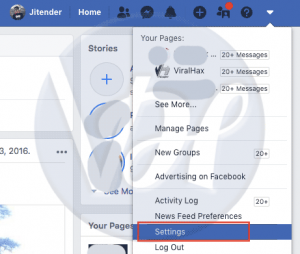
- Under Settings, click on Apps and Websites and then try finding Instagram in the list. If you aren’t able to find Instagram in the list, click on See more.
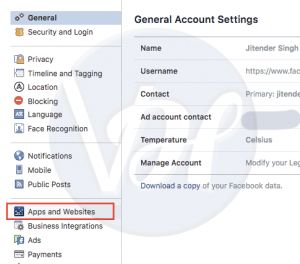
- Click on the Instagram icon.
- This will open a page for you, try finding the option Remove App at the bottom of the page and click on it.
- A prompt will appear on the screen. Please check the box informing you that all your Instagram activities will be deleted from your Facebook account if you remove the app.
- Please click on the option Remove at the bottom right corner of the prompt.
This will successfully remove all your existing Instagram posts from your Facebook account.