Contents List
Ever wanted to delete your Instagram account, but didn’t know how to do that? If yes, then we are going to make that happen for you. In this ultimate guide, we are going to show some steps which you can take into consideration while deleting the Instagram account. So, without wasting any more time, here’s our complete guide on how to delete Instagram account or disable it permanently.
How to Delete Instagram Account Permanently

But before that, let’s understand how both the terms differ from each other.
Also Read:- How to Delete Outlook Account Quickly and Easily?
Disable or Delete Instagram Account: What’s the Difference?
There are two comm0n ways which you can use to close your Instagram account, both of them seems to be same, but they are different from each other. Let’s dive into it and understand the point completely which I am trying to convey.
1. The first option is to disable your Instagram which literally means to delete your Instagram for some time. When you disable your Instagram account, then you will be removed from Instagram for some time and whenever you will come back and login to your account, all of your information will be available on Instagram again.
2. The second option is to delete Instagram permanently which means that if you delete your account once, it will not be available again. When you delete your account, all of your information will be deleted permanently and it will not be reactivated again.
Also Read:- How to Delete Snapchat Account Permanently?
How to Disable Your Instagram Account?
In order to temporarily disable your Instagram account, follow the steps given below:
- Log in to your Instagram account from a computer because it’s not possible to disable an Instagram account from within the app.

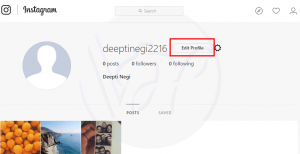
- Once you are logged in, click on the “Edit Profile” option.
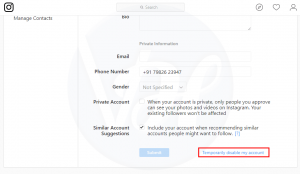
- Now scroll down and select “Temporarily disable my account” option.
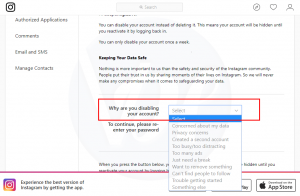
- Once found, just click on it and select why are you deleting your Instagram account from the drop-down list.
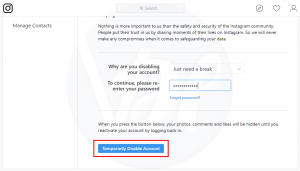
- After that, Enter your password again to confirm the deactivation of your Instagram account.
- Now, click on “Temporarily disable account” and that’s it.
Congratulations! You’ve successfully disabled your Instagram account.
Note: If you want to access your Instagram account again, then just login to your account to reactivate it.
Also Read:- How Do I Delete a Gmail Account Permanently
How to Delete Instagram Account Permanently?
- Visit this dedicated Instagram page and then log in to your Instagram account.
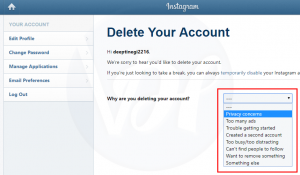
- On the next page, select the reason why you are deleting your Instagram account.
- Re-enter your password and click on the red button stating “permanently delete my account” text.

- That’s it! Your account is now successfully deleted.
Conclusion
That’s it, Guys! Above are the two methods which you can use to delete the Instagram account. I hope this post helped you to get what you were looking for. If you enjoyed this article, then share it with your friends, family, and relatives. Also, if you have any doubts or questions to ask, do let me know in the comment section below so that I can help you out as soon as possible.